Server guide
Setting up ValhSync beside a Valheim dedicated server, on Windows and on Linux. Twenty minutes the first time, and nothing to redo afterwards.
This is an early version. 0.0.3 is the third release there has ever been. One server has actually run it — a Windows machine, a dedicated server beside it, a handful of players — and the whole chain works there. Everything else is tested but has not met a real server: Linux, hosted providers, Proton, any setup that is not the one above.
So: back up the server's BepInEx folder before pointing ValhSync at one that
matters, and expect to find things. Finding them is what this stage is for — say so on the
repository when you do.
§1Before you start
You need a Valheim dedicated server that already works: players can join it, with or without mods. ValhSync publishes the mods it is running; it does not install the server for you.
BepInEx has to be installed in the server's folder, since that is what ValhSync reads. Nothing else is required: no database, no account, no service to register.
The port
If you publish from your own machine, ValhSync listens on the game's own port, in TCP — 2456 by default. Valheim uses that port in UDP only, so a router rule covering both protocols, which is the ordinary shape, carries them both. You do not open a new port. If your rule is UDP-only, widen it to TCP+UDP.
If you would rather open nothing at all, export a folder and upload it anywhere — see §5.
§2Install
Unpack the admin archive somewhere the service user can read. Keep
valhsync.exe beside valhsync-server: that is what lets the publisher
offer players an up-to-date launcher later.
Windows
- Unpack
valhsync-<version>-x86_64-pc-windows-msvc.zip, for example intoC:\valhsync\. - Run
valhsync-server.exe. A window opens.
Windows may warn on first run: the binaries are not signed with a paid certificate. More info → Run anyway. Release hashes are published if you want to check first.
Linux
sudo useradd --system --home /opt/valhsync \
     --shell /usr/sbin/nologin valhsync
sudo mkdir -p /opt/valhsync
sudo tar -xzf valhsync-*-linux-gnu.tar.gz \
     --strip-components=1 -C /opt/valhsync
sudo chown -R valhsync: /opt/valhsync
The service user needs read access to the dedicated server's BepInEx folder — it never writes there — and write access to its own directory.
§3First run
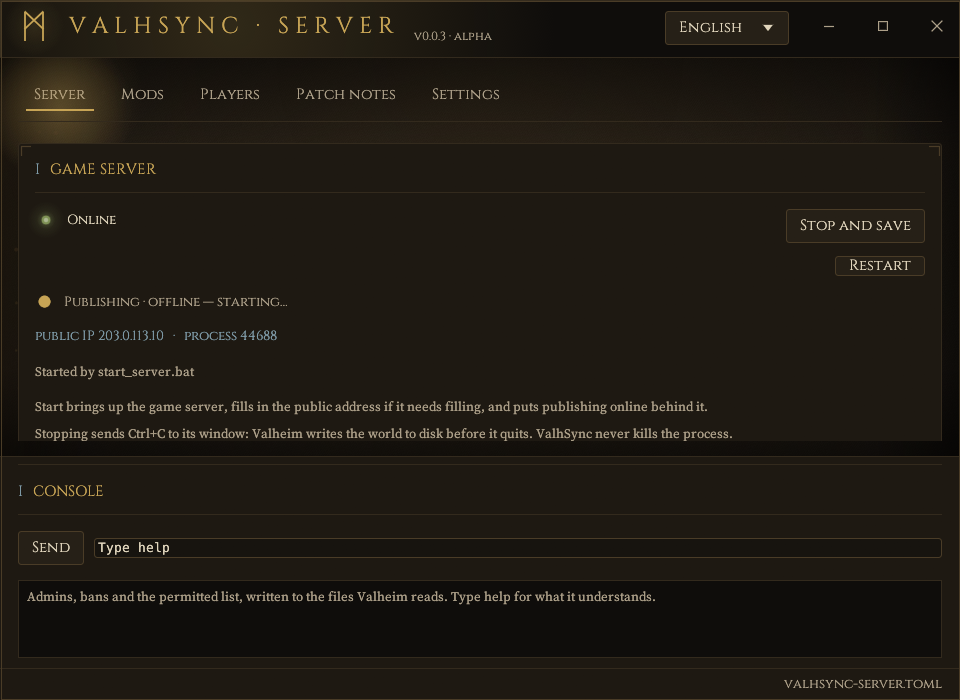
Windows: the window
It finds the dedicated server by itself (Steam app 896660, then the usual folders). Check the three things on the Settings tab:
- the server folder it found;
- the name players will see;
- the game server address,
host:port.
The address is detected and filled in for you when what is there cannot work. There is no Save button: it writes itself.
Linux: init
sudo -u valhsync /opt/valhsync/valhsync-server \
  --config /opt/valhsync/valhsync-server.toml init \
  --server-root /home/steam/valheim \
  --name "My server" \
  --game-address valheim.example.org:2456 \
  --public-url http://valheim.example.org:2456
It writes a commented configuration, generates the signing key and prints the invite code.
Where things live
| Windows | Linux | |
|---|---|---|
| Configuration | %APPDATA%\valhsync\valhsync-server.toml | ~/.config/valhsync/valhsync-server.toml |
| Key, store, manifest | valhsync-server-data/, beside that file | |
A valhsync-server.toml already sitting beside the executable is honoured
instead — a portable install, which is what --config also gives you.
valhsync-server-data/keys/server.key. It is your
server's identity. Every player pins it; lose it and all of them are refused until they
import a fresh invite code. It lives beside the configuration, not beside the executable, so
unpacking a new build does not mint a new one — and if you have a key from an older install,
Settings → Invite code → Take over another install's key adopts it.
§4Choose what travels
Everything in the server's BepInEx/plugins is published unless you say
otherwise. Two things usually should not travel:
- Server-only mods — admin tools, Discord bridges, anything with no effect
on a client. On Windows, the Mods tab: each row is either sent to
players or server only. On Linux, list them under
[pack] exclude. - Client-only mods — the ones that are not installed on the server at all,
so ValhSync cannot find them there. Put them in the
client-extras/folder, laid out like a game root (BepInEx/plugins/...).
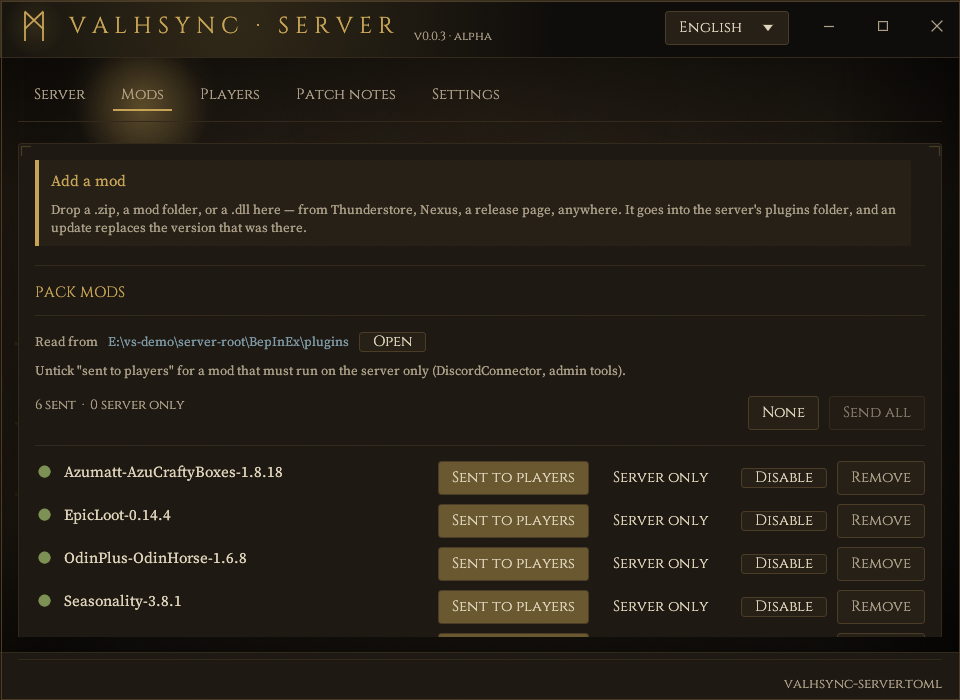
Check what a publish would contain before it goes out:
valhsync-server scan§5Publish
Live server
ValhSync serves the pack from this machine, on the game's port in TCP.
valhsync-server serveOn Windows the window does it for you, and publishing follows the game server: bring the game up, however you bring it up, and the pack goes online behind it.
It rebuilds whenever the pack changes, and whenever the configuration does.
Static files
No port at all. Writes a folder to upload anywhere — GitHub Pages, S3, a web host.
valhsync-server export ./pack-siteThen point public_url at wherever that folder ends up. Pair
export --watch with whatever already uploads for you.
No local server at all?
A hosted server (G-Portal, Nitrado and the like) has no folder you can read. Leave
server_root out, keep a copy of the pack in client_extras, and point
game_address at the host. The publisher can run anywhere — your desktop, a small
VPS. This path has a test, but no real hosting provider has been on the other end of it.
§6Hand out the launcher
Send them the launcher and your server's address. That is the whole handout, and what nearly every server will do.
The address — what most players use
Just 203.0.113.10:2456, the same thing they already paste into Valheim.
It goes into Add a server and the launcher fetches your key itself.
It then shows the fingerprint and waits. Put yours in the same message
as the address so they can compare before accepting —
valhsync-server invite prints it, and the window has it under Settings.
The invite code — when you want it turnkey
valhsync-server invite prints it; the window has a copy button. It carries
your key inside it, so there is no fingerprint for the player to compare.
Its real use is a zip holding valhsync.exe and a file named
valhsync-invite.txt with the code in it: the launcher imports it on first
start and they type nothing at all.
After that, you do not have to send anything again: if valhsync.exe sits beside
the publisher, players are offered each new launcher through the same signed channel.
§7Keep it running
Linux: systemd
sudo cp valhsync-server.service /etc/systemd/system/
sudo systemctl daemon-reload
sudo systemctl enable --now valhsync-server
journalctl -u valhsync-server -f
The unit in docs/deploy runs as a dedicated
user with ProtectSystem=strict and a read-only home; its header carries the
whole setup.
Windows: Task Scheduler
- Create Task → run whether logged on or not.
- Trigger: at startup.
- Action:
valhsync-server.exe, arguments--config C:\valhsync\valhsync-server.toml serve, starting inC:\valhsync. - Settings: restart every minute on failure.
Or NSSM, for a real service entry. Both are written out in docs/deploy.
§8Day to day
Adding or updating a mod is: put it in the server's BepInEx/plugins, restart the
dedicated server, done. The pack is rebuilt and re-signed on its own, and the next time each
player presses Play they are brought in line.
From the window, on Windows:
- Drop a mod on the Mods tab. A
.zipfrom Thunderstore, Nexus, a GitHub release page or anywhere else; a mod folder; or a bare.dll. ValhSync works out whether the files sit at the archive's root, underplugins/or under a wholeBepInEx/tree, names the folder from the manifest when there is one, and clears the previous version out first so BepInEx is never asked to load two. Nothing is written outsideBepInEx/plugins, whatever paths the archive claims. Archives compressed with bzip2, LZMA, zstandard or xz are refused by name rather than half-read — extract those yourself and drop the folder. - Start, Restart, Stop and save. Stopping sends Ctrl+C to the server's console, so Valheim writes the world before it exits; the process is never killed. Restart waits for it to actually be gone before starting again. Optionally, a server that exits without being asked to is brought back: off by default, because a server that returns after you deliberately shut it down is fighting you, and bounded at three restarts in twenty minutes because the failure this exists for is also the failure that loops.
- Turn a mod off, or take it out, from the row it is on. Disabling moves
it out of
BepInExentirely — renaming it in place would not do, since BepInEx loads every.dllunderpluginsrecursively and anything still inside it travels to players in the pack. Removing does not delete: the mod goes to a folder ValhSync owns and the window says which, so a mistake at eleven at night can be walked back. - Back up the world. ValhSync protects every file it puts on a player's
machine and, until now, nothing on yours — which is the wrong way round, since the world is
the one thing that cannot be downloaded again, and adding a mod is exactly when one gets
corrupted. Both halves travel together, beside
worlds_localand never inside it. Valheim writes the world while it plays, so a copy taken with the server up can be torn; the window says so before the click rather than after. - The log, followed live, filling the tab; and below it a resizable console carrying the lines the server prints to its own console, which are otherwise a handful among tens of thousands.
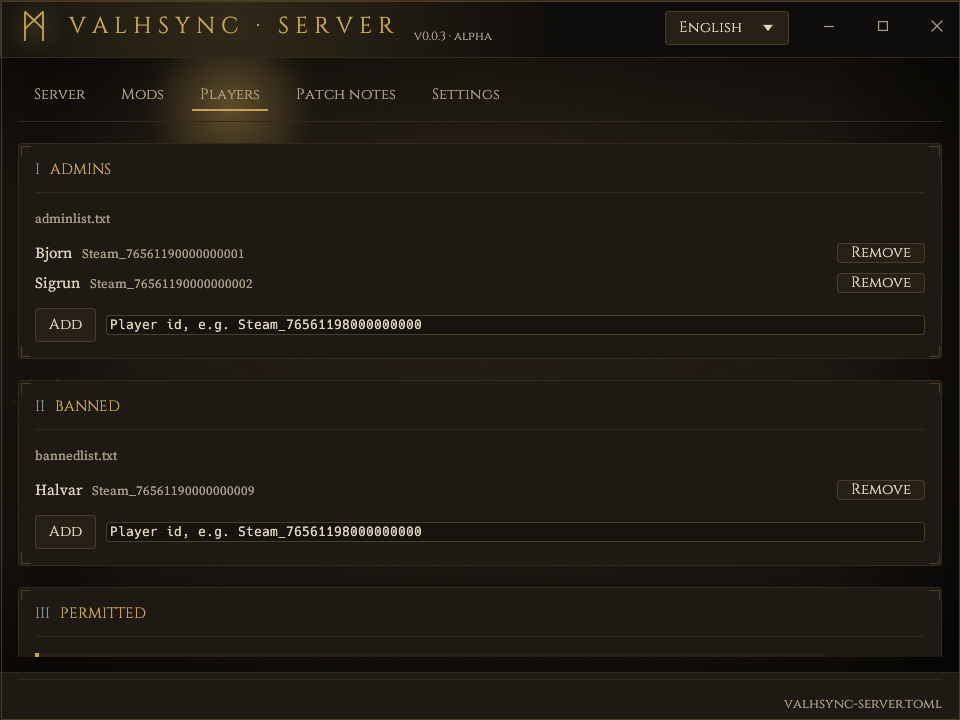
- Players, on their own tab, and a prompt on the console for the same
thing:
admin,ban,permitand their un- forms, plusadmins,banned,permittedto see a list. These write the three files Iron Gate documents —adminlist.txt,bannedlist.txt,permittedlist.txt— which is the only channel a dedicated server has from outside the game. It does not read its console, whatever its start-up banner says, and Valheim has no RCON; kicking somebody who is connected right now, and saving on demand, are an admin pressing F5 in the game. Typing those here says so rather than failing quietly. - Announce a release in Discord, if you want one announced. Paste a webhook URL into the configuration and each published pack is posted to that channel with what changed and whatever you wrote in the note. Absent by default, and absent means nothing is sent anywhere: ValhSync contacts no third party unless you put an address there.
- Patch notes, on their own tab — a real one, and most of it writes itself. The list of mods added, updated and removed is computed from the pack and named for you, so you never retype a version number. What you add is the half a diff cannot produce: that a mod resets its own config, that a chest mod wants an empty base first, that this update only matters to the people who were crashing on the boat. Players read the whole thing before the sync if they want to, behind a What's new button, and it is still there afterwards. Nothing waits on them agreeing to it: pressing Play installs.
From the command line, on either platform: start-game, stop-game,
scan, invite, rotate-key.
§9When it goes wrong
| What you see | What it is |
|---|---|
| Players get “Incompatible version” with the right mods | The dedicated server and the game are on different Valheim versions. Update the server through Steam — they are separate applications. |
| Launchers say “server offline” | Nothing is listening. Check publishing is online, and that your router rule covers TCP as well as UDP on the game's port. |
| “The server's signing key does not match” | The key changed. Usually a fresh install that minted a new one: take over the old key from Settings, or send everyone a new invite code. |
| Publishing will not start | The card says why, and keeps saying it. Most often the configuration has never been written, or the address is still the template's. |
| A player has a mod you do not | It is moved aside into a folder inside their game, never deleted, and the launcher tells them where. |
The server's log is on the Console tab, with a copy button. It holds your public address and the crossplay join code, so it is not something to screen-share.